A tutorial on using AirportItlwm for enabling native macOS WiFi on hackintoshes with Intel Wireless cards running macOS 15 Sequoia
For this guide, you’ll need good knowledge of the config.plist structure, although this tutorial is fairly simple. You should be able to do this within 45 mins to 2 hrs. This guide is separated in 3 different parts: in part 1, we will spoof the Intel wireless card as a Broadcom card. In part 2, we will use OCLP to patch the card and get WiFi working. In part 3, we will fix Bluetooth, as it breaks sometimes during the patching. Additionally, this guide assumes that you have a fully functional hackintosh already, which means that bluetooth works, too. If not, please refer to Dortania’s guide. I am not responsible for any data lost. Proceed at your own caution and ensure you make a backup of your working EFI first.
Prerequisites:
- Hackintool
- OpenCore Legacy Patcher
- ProperTree (or any other .plist editor)
- IO80211FamilyLegacy.kext
- IOSkywalkFamily.kext
- AMFIPass.kext
- AirportItlwm.kext Get the AirportItlwm_v2.3.0_stable_Ventura.kext.zip!!!
Step 1.: Spoofing:
First, open Hackintool and navigate to the PCIe section. There, you will find your Intel Wireless card. Mine is listed as „Intel Coporation | Wireless 8260 | Network Controller“. Look at its Device Path and right-click it. Select „Copy device path“.
Then, open your config.plist in your .plist editor of choice and find the DeviceProperties tab. Under Add, add a new dictionary with the name of yournetwork card’s Device Path:
| Key | Type | Value |
|---|---|---|
| IOName | String | pci14e4,43a0 |
| compatible | String | pci106b,117 |
| device-id | Data | A0430000 |
| device_type | String | Network Controller |
| model | String | BCM4360 802.11ac Wireless Network Adapter |
| name | String | pci14e4,43a0 |
| pci-aspm-default | Number | 0 |
| subsystem-id | Data | 17010000 |
| subsystem-vendor-id | Data | 6B100000 |
| vendor-id | Data | E4140000 |
After that, it’s time to add the kexts. Add the kexts to your EFI folder: EFI > OC > Kexts. In ProperTree, press „⌘ + r“ to add them into the config.plist, or simply drag and drop them into your OCAT window. Make sure to watch their order very carefully. From bottom to top: „AirportItlwm.kext > AMFIPass.kext > IO80211FamilyLegacy.kext/Contents/PlugIns/AirPortBrcmNIC.kext > IO80211FamilyLegacy.kext > IOSkywalkFamily.kext“. Here a table:
| Number | Kext |
|---|---|
| 1 | IOSkywalkFamily.kext |
| 2 | IO80211FamilyLegacy.kext |
| 3 | IO80211FamilyLegacy.kext/Contents/PlugIns/AirPortBrcmNIC.kext |
| 4 | AMFIPass.kext |
| 5 | AirportItlwm.kext |
Note
Make sure you don’t have amfi_get_out_of_my_way or amfi=0x80 in your boot args.
Warning
Make sure you don’t have itlwm.kext enabled. If you do, disable it or delete it completely.
Now, we need to block one of Apple’s kexts from loading. For that, go to the Kernel > Blocksection and enable Allow ÌOSkywalk Downgrade.
Also, for OCLP to work, you need to set csr-active-config (located under NVRAM > 7C436110-AB2A-4BBB-A880-FE41995C9F82) and set it to 03080000.
Reboot!
Step 2.: Patching
Open OpenCore Legacy Patcher and select Post-Install Root Patch. It should now find the patch. Select Start Root Patching. After it finishes, reboot.
Note
If you get any SIP-related errors, try resetting NVRAM.
Now, the native WiFi still won’t work. To fix that, we will simply comment out the spoof. To do that, open your config.plist to DeviceProperties > Addagain. Then, find your network card’s device path and add a # in front of it.
Now, it should say something like #PciRoot(0x0)/Pci(0x0,0x0)/Pci(0x0,0x0). This is just an example, yours will differ.
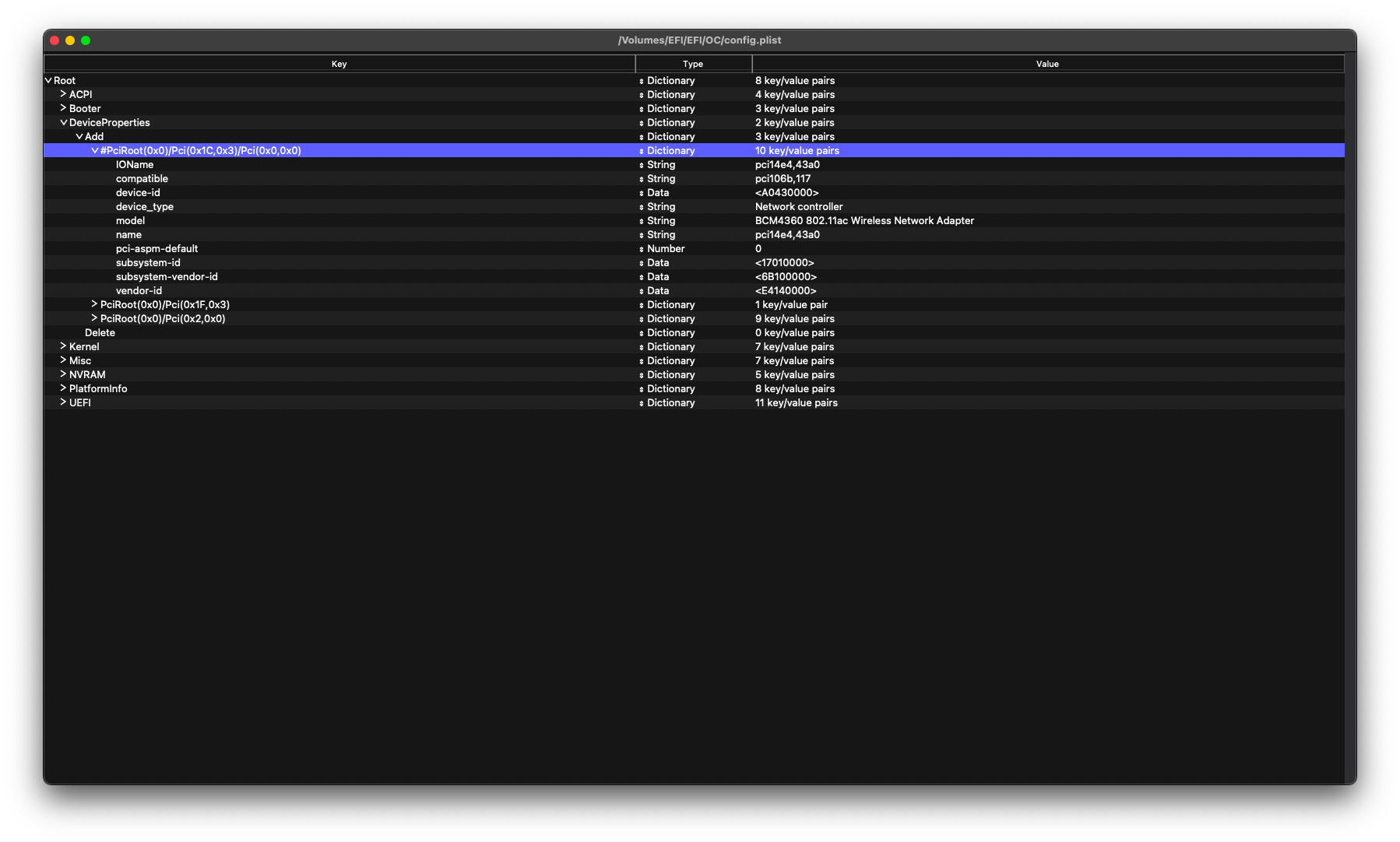
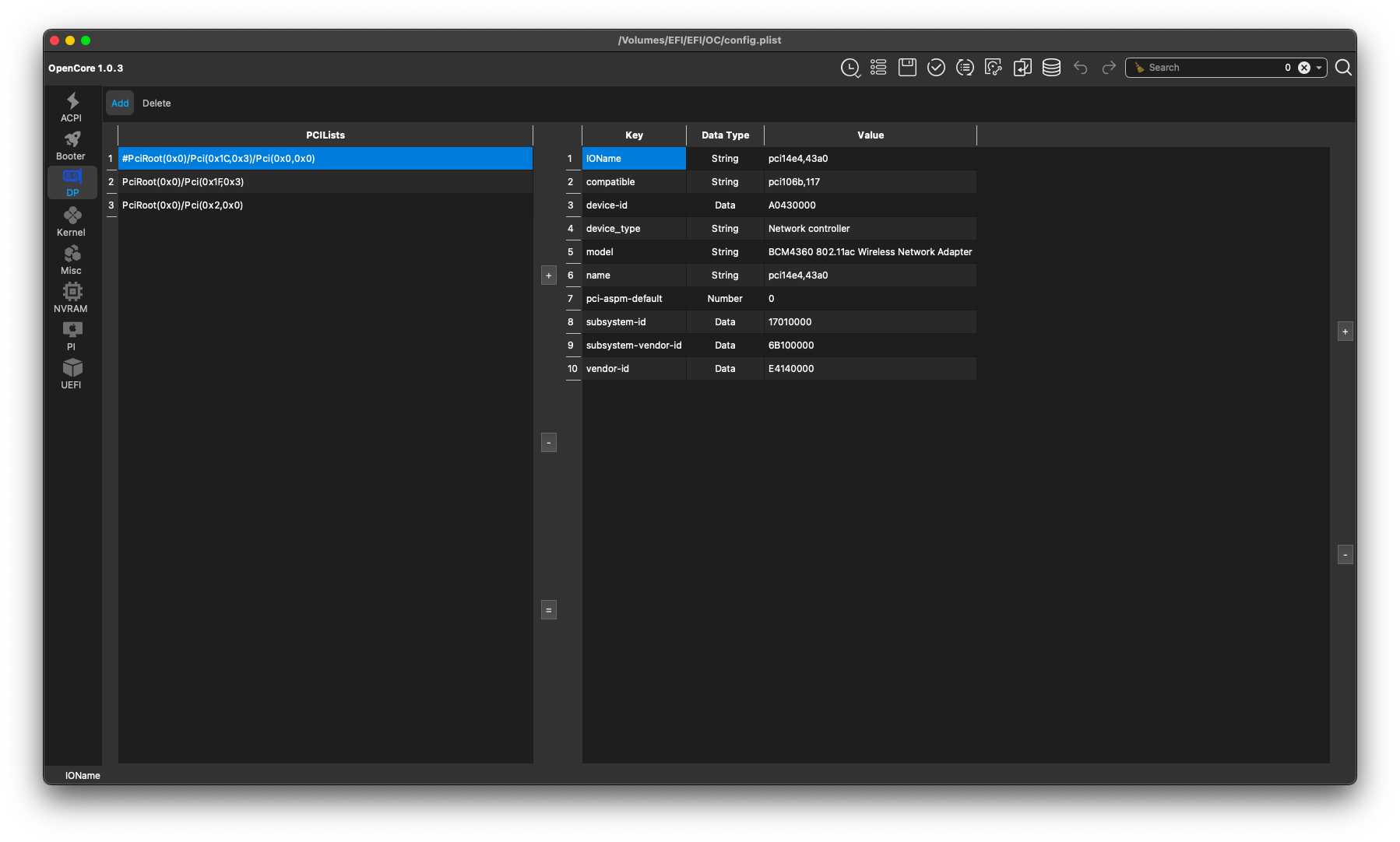
After a reboot, WiFi should work flawlessly now. AirPlay and iServices should also work, even AirDrop, although AirDrop is one-way only.
Step 3.: Bluetooth
As you may have noticed, Bluetooth doesn’t work anymore. Fortunately, there is a very easy fix. Go to NVRAM > 7C436110-AB2A-4BBB-A880-FE41995C9F82 and create two new keys:
| Key | Type | Value |
|---|---|---|
| bluetoothExternalDongleFailed | Data | 00 |
| bluetoothInternalControllerInfo | Data | 0000000000000000000000000000 |
Should it not work, please also try resetting NVRAM multiple times.
Disclaimer: I didn’t do the „hard work“, I only gathered information on the internet and wrote this tutorial. This is a temporary solution, and should be considered as such.